
Setup RDP on Ubuntu
To setup Remote Desktop Protocol (RDP) on Ubuntu, you can either use the built-in Remote Desktop sharing feature or install a third-party RDP server like xrdp.
Method 1: Using Built-in Remote Desktop Sharing
This method only allows one active session at a time, meaning if someone is logged in locally, a remote user cannot connect until the local user logs out, even is different user accounts are used.
My Ubuntu version is 24.04 LTS. So the UI might differ slightly on other versions.
-
Open Settings.
-
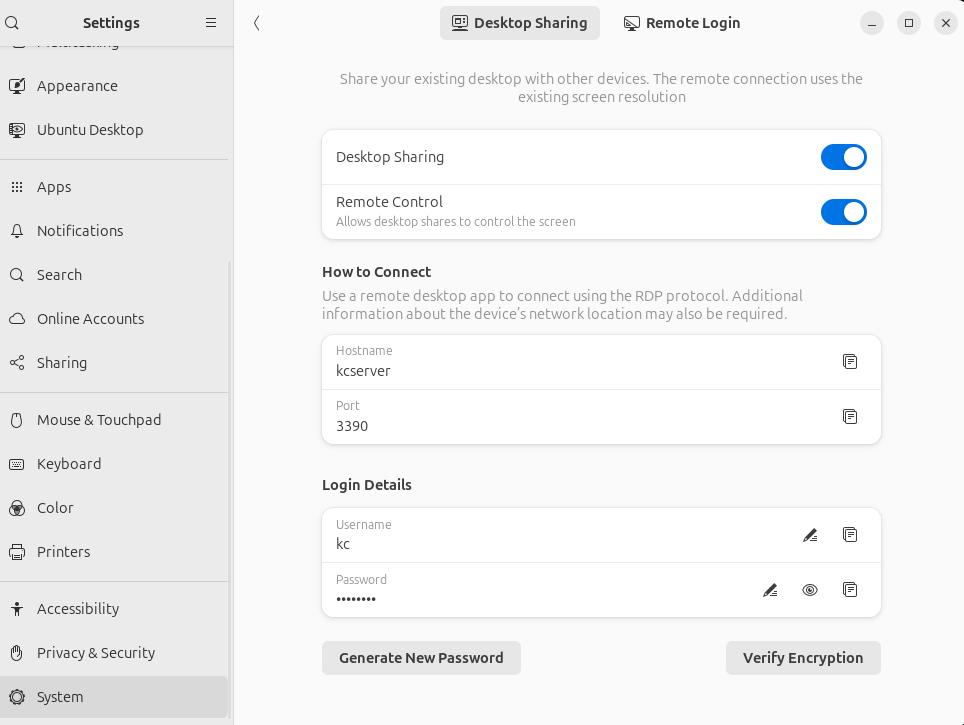
Navigate to System > Remote Desktop.
-
Toggle the switch to enable Remote Desktop.
-
Configure the settings as needed (e.g., username, password).
-
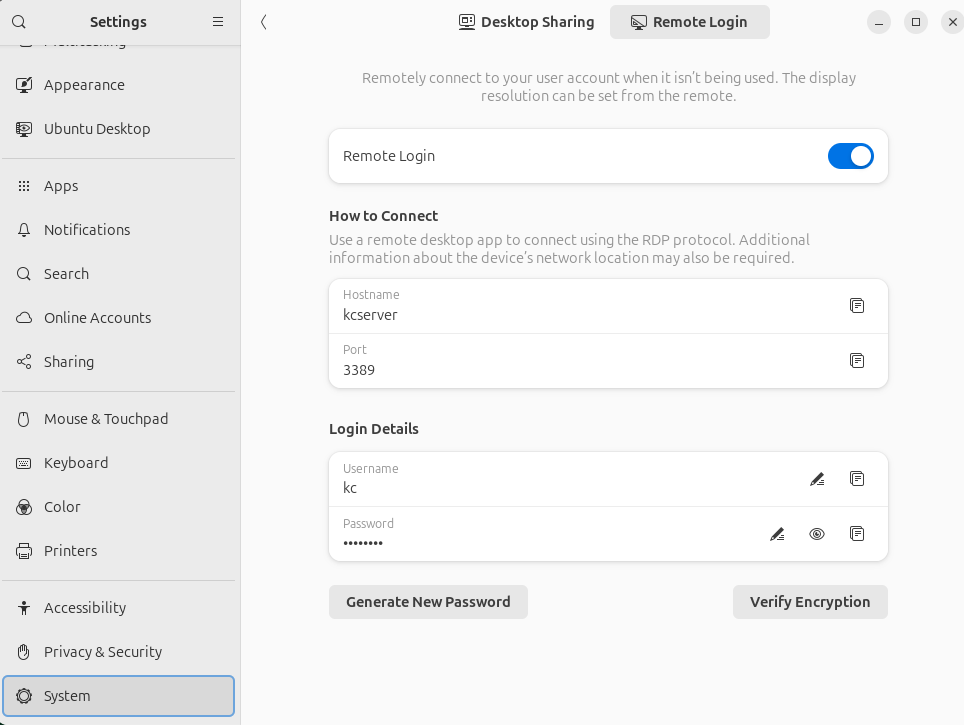
Enable Remote Login and setup login details if you want to allow remote connections.
-
If you have configured a firewall, ensure that port 3389 is open for RDP connections.
sudo ufw allow 3389/tcp
Method 2: Installing xrdp
This method allows multiple users to connect simultaneously as it creates separate remote sessions that do not interfere with the local session. Assuming you have multiple user accounts set up on your Ubuntu machine, each user can log in remotely without disrupting others. That means each user will have their own isolated desktop environment.
sudo apt update && sudo apt install -y xrdp
sudo systemctl enable xrdp
sudo systemctl start xrdp

# Allow RDP through the firewall
sudo ufw allow 3389/tcp