Check Ubuntu Static IP Configuration
To check the static IP configuration on Ubuntu, you can use the command line or the graphical user interface (GUI).
Using ip addr command
When you run the following command, it will display all network interfaces and their IP addresses:
ip addr showLook for the interface you are interested in (e.g., etho, w1an0) and check the inet line for the assigned IP address. Here is an example output:
3: wlo1: <BROADCAST,MULTICAST,UP,LOWER_UP> mtu 1500 qdisc noqueue state UP group default qlen 1000
    link/ether a0:29:42:00:3c:78 brd ff:ff:ff:ff:ff:ff
    altname wlp0s20f3
    inet 192.168.0.20/24 brd 192.168.0.255 scope global dynamic noprefixroute wlo1
       valid_lft 84015sec preferred_lft 84015sec
    inet6 2001:e68:545b:1e09:a2b3:4edc:3df5:2478/64 scope global temporary dynamic
       valid_lft 192901sec preferred_lft 84878sec
    inet6 2001:e68:545b:1e09:20ce:6713:d2e1:733a/64 scope global dynamic mngtmpaddr noprefixroute
       valid_lft 192901sec preferred_lft 106501sec
    inet6 fe80::c7b2:63f6:791c:7ef9/64 scope link noprefixroute
valid_lft forever preferred_lft forever- Static IP: If the line starting with
inet(your IP address) does not contain the worddynamic, it indicates that the IP address is statically assigned. - DHCP (Dynamic): If you see
dynamic, it means the IP was assigned via DHCP.
Using ip route command
You can also check the routing table to see the default gateway and associated interface:
kc@kchomelab:~$ ip route list default
default via 192.168.0.1 dev wlo1 proto dhcp src 192.168.0.20 metric 600- If the output includes
proto dhcp, it indicates that the IP address was assigned via DHCP. - If the output includes
proto static, it indicates a static IP configuration.
Inspect Netplan Configuration
You can check the Netplan configuration files located in /etc/netplan/ to see if a static IP is configured. Use the following command to view the configuration:
grep -E "addresses:|dhcp4: (no|false)" /etc/netplan/*.yamlIf you see addresses: with a specific IP address and dhcp4: no or dhcp4: false, it indicates a static IP configuration.
Using NetworkManager CLI
You can use the nmcli command to check the connection settings:
nmcli con show --activeCheck the IPv4 method for a specific connection:
nmcli -f ipv4.method con show "<Your connection name>"Here is an example:
kc@kchomelab:~$ nmcli -f ipv4.method con show "kc_5G"
ipv4.method: auto- If the
ipv4.methodis set tomanual, it indicates a static IP configuration. - If it is set to
auto, it indicates a DHCP configuration.
GUI settings
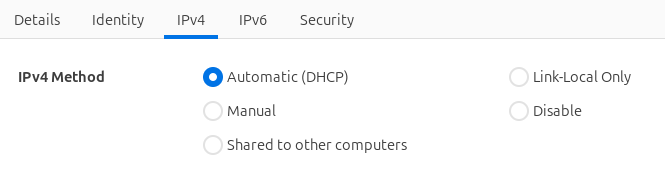
You can also check the static IP configuration using the Ubuntu GUI:
- Open the "Settings" application > "Network or Wi-Fi".
- Click the gear icon (Network options) next to your network connection.
- Go to the "IPv4" tab.
- Check if the "Method" is set to "Manual" (indicating a static IP) or "Automatic (DHCP)" (indicating a dynamic IP).